
How to Choose the Right Workstation for Professional Software
Choosing the right workstation PC can make a significant difference to your productivity, workflow, and ability to handle demanding professional applications. Whether you work in architecture, engineering, 3D design, video editing, or artificial intelligence, your computer needs to match the software you use every day.
Unlike a standard office PC, a professional workstation is designed around specific workloads. Some applications depend heavily on CPU performance, while others benefit from a powerful GPU, additional RAM, or fast storage.
So, how do you choose the best workstation for your professional software? The key is to understand your workload before investing in hardware.
1. Identify the Software You Use
The first step when choosing a professional workstation is identifying your primary applications. Different programs have different hardware requirements, so there is no single workstation configuration that is ideal for every professional.
For example:
-
AutoCAD and SolidWorks: Prioritize strong CPU performance, sufficient RAM, and suitable graphics hardware for drafting, modeling, and engineering workflows.
-
Revit and SketchUp: Consider CPU performance, RAM capacity, and GPU capabilities for architectural modeling and complex projects.
-
Blender, Maya, and Unity: GPU performance, CPU processing power, and memory can all affect 3D creation, rendering, and development workflows.
-
Adobe Premiere Pro and DaVinci Resolve: Balance CPU performance, GPU acceleration, RAM, and fast storage for video editing and effects.
-
Photoshop and Illustrator: A responsive CPU, sufficient RAM, and fast SSD storage provide a practical foundation for image editing and graphic design.
-
Topaz Studio and AI-powered creative tools: GPU capabilities, supported acceleration features, VRAM, and system memory can influence processing performance.
Before purchasing, check the official hardware requirements for your specific software version and the complexity of the projects you handle.
2. Choose the Right Processor
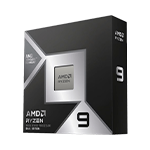
The CPU is one of the most important components in a workstation PC.
Applications that rely on single-thread performance, such as many CAD operations, can benefit from strong per-core performance. Rendering, simulation, encoding, and other heavily parallel workloads may benefit from additional CPU cores.
For example, a workstation for AutoCAD drafting may have different priorities from a system used for complex 3D rendering or CPU-based simulations.
When comparing workstation processors, consider core count, clock speeds, supported memory, platform compatibility, and the software you use.
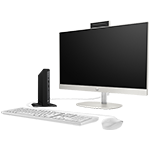
Explore Vektra's Professional Workstations to compare systems designed for different professional applications.
3. Select a GPU That Matches Your Workload
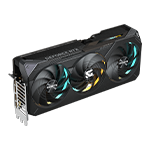
A graphics card can be essential for 3D modeling, rendering, visualization, video effects, and GPU-accelerated applications.
However, the most expensive GPU is not automatically the best choice for every workstation.
For architectural visualization using applications such as Lumion or Enscape, a capable GPU with sufficient VRAM can be particularly important. Blender rendering and certain AI workflows may also benefit from stronger graphics processing capabilities.
For CAD and engineering applications, check whether your software benefits from a professional GPU, a consumer graphics card, or specific certified drivers.
Vektra offers an Architectural Modeling and BIM Workstation for Revit and SketchUp, configured with a Ryzen 7 9700X, RTX 5060 Ti 16GB, and 32GB DDR5 RAM.
For more demanding 3D workflows, explore the 3D Modeling and Rendering Workstation for AutoCAD, Fusion, Lumion, and Enscape.
4. How Much RAM Does a Workstation Need?
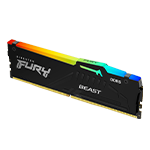
RAM affects how many applications and project files your workstation can handle comfortably.
For general professional work, 16GB may be sufficient for lighter workloads. However, 32GB RAM is a sensible starting point for many professional workstations, especially for 3D modeling, video editing, and larger creative projects.
For complex BIM models, high-resolution video projects, large datasets, or demanding simulations, 64GB or more may be appropriate.
Your ideal memory capacity depends on project size, software requirements, and how many applications you run simultaneously.
5. Choose Fast and Sufficient Storage
A workstation needs enough storage for applications, project files, source footage, textures, models, and completed exports.
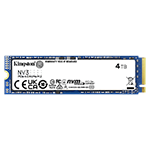
A 1TB NVMe SSD is a practical starting point for many professional systems. It provides fast access to applications and project files, while larger projects may require additional SSDs or dedicated storage.
Video editors and 3D artists should pay particular attention to storage capacity because footage, caches, textures, and rendered files can consume substantial space.
You can explore compatible upgrades through Vektra's Memory and Storage collection.
6. Match the Workstation to Your Profession
Different professional workloads call for different hardware combinations.
For architectural and engineering workflows, consider the Drafting and Modeling Workstation for AutoCAD 2D and SolidWorks.
For video production, the Video Editing Workstation for Adobe Premiere Pro and DaVinci Resolve combines an Intel Core Ultra 5 250K Plus processor, RTX 5060 8GB, and 32GB RAM.
For animation and 3D creation, explore the 3D Animation and Rendering Workstation for Maya, Blender, and Unity.
Choosing a workstation built around your main applications helps you prioritize the components that matter most to your workflow.
7. Don't Overlook Cooling, Power, and Upgrade Options
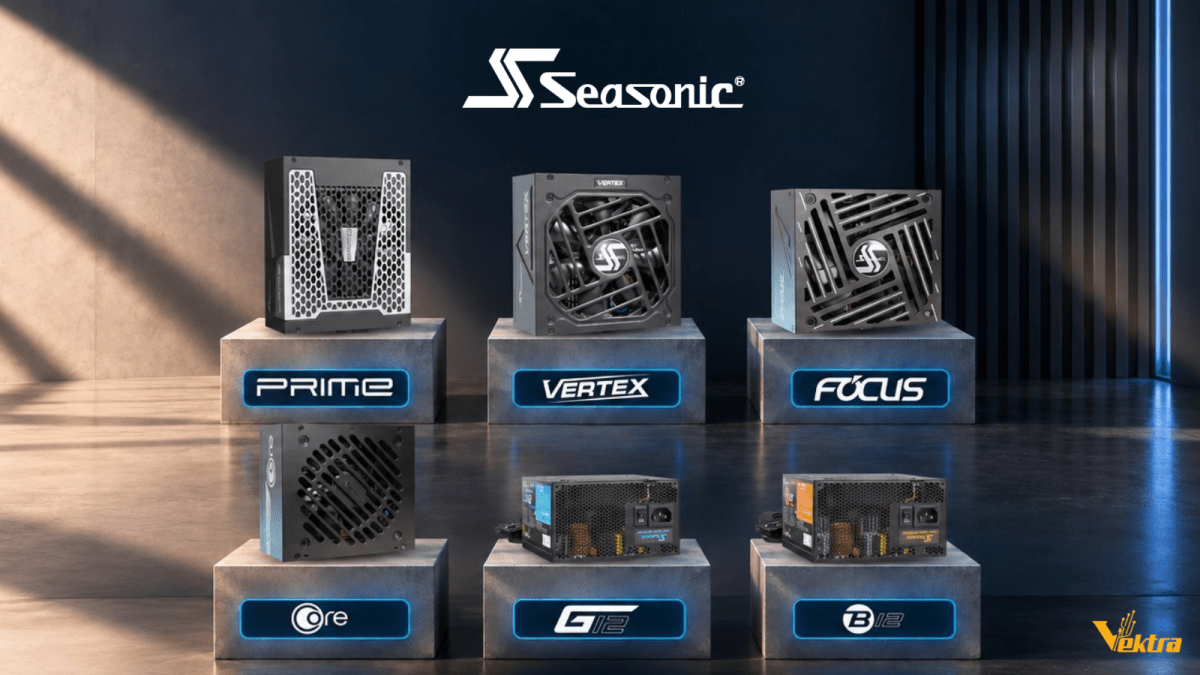
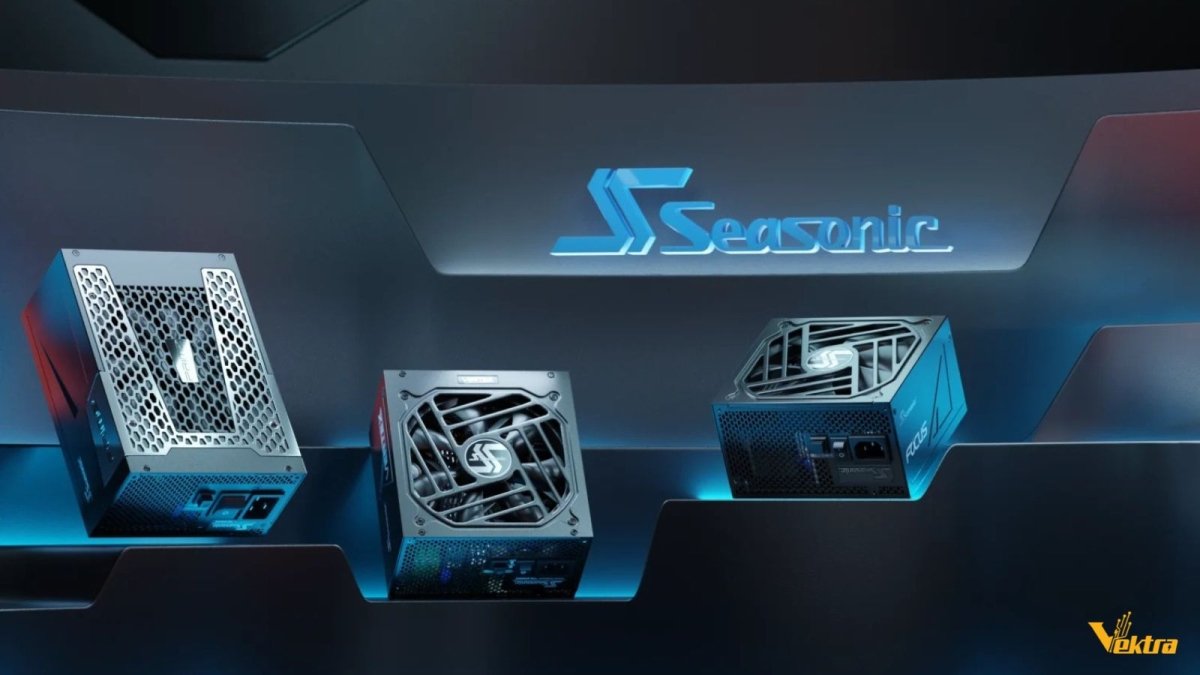
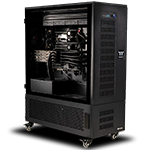
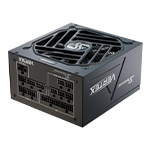
Professional workloads can keep a workstation under sustained load for extended periods. Proper cooling, a suitable power supply, and a well-designed case help support reliable operation.
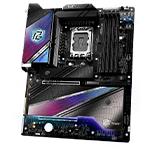
Also consider motherboard connectivity, available memory slots, storage expansion, GPU clearance, and PSU capacity if you expect to upgrade your system later.
A workstation should be selected for its complete configuration, not just its processor or graphics card.
Find Your Professional Workstation at Vektra PC
The best workstation PC is the one that matches your software, project complexity, and working requirements.
Start by identifying your applications, then choose the right balance of CPU performance, GPU capability, RAM, and storage. Check the software manufacturer's recommendations before making your final decision.
At Vektra PC, you can explore purpose-configured systems for CAD, BIM, 3D rendering, video editing, design, and AI-assisted creative workflows.
Explore the Vektra Professional Workstation collection to find a workstation suited to your professional workflow.
Choose the right hardware for your work, improve your workflow, and build with Vektra PC.
How to Choose the Right Workstation for Professional Software
Choosing the right workstation PC can make a significant difference to your productivity, workflow, and ability to handle demanding professional applications. Whether you work in architecture, engineering, 3D design, video editing, or artificial intelligence, your computer needs to match the software you use every day.
Unlike a standard office PC, a professional workstation is designed around specific workloads. Some applications depend heavily on CPU performance, while others benefit from a powerful GPU, additional RAM, or fast storage.
So, how do you choose the best workstation for your professional software? The key is to understand your workload before investing in hardware.
1. Identify the Software You Use
The first step when choosing a professional workstation is identifying your primary applications. Different programs have different hardware requirements, so there is no single workstation configuration that is ideal for every professional.
For example:
-
AutoCAD and SolidWorks: Prioritize strong CPU performance, sufficient RAM, and suitable graphics hardware for drafting, modeling, and engineering workflows.
-
Revit and SketchUp: Consider CPU performance, RAM capacity, and GPU capabilities for architectural modeling and complex projects.
-
Blender, Maya, and Unity: GPU performance, CPU processing power, and memory can all affect 3D creation, rendering, and development workflows.
-
Adobe Premiere Pro and DaVinci Resolve: Balance CPU performance, GPU acceleration, RAM, and fast storage for video editing and effects.
-
Photoshop and Illustrator: A responsive CPU, sufficient RAM, and fast SSD storage provide a practical foundation for image editing and graphic design.
-
Topaz Studio and AI-powered creative tools: GPU capabilities, supported acceleration features, VRAM, and system memory can influence processing performance.
Before purchasing, check the official hardware requirements for your specific software version and the complexity of the projects you handle.
2. Choose the Right Processor
The CPU is one of the most important components in a workstation PC.
Applications that rely on single-thread performance, such as many CAD operations, can benefit from strong per-core performance. Rendering, simulation, encoding, and other heavily parallel workloads may benefit from additional CPU cores.
For example, a workstation for AutoCAD drafting may have different priorities from a system used for complex 3D rendering or CPU-based simulations.
When comparing workstation processors, consider core count, clock speeds, supported memory, platform compatibility, and the software you use.
Explore Vektra's Professional Workstations to compare systems designed for different professional applications.
3. Select a GPU That Matches Your Workload
A graphics card can be essential for 3D modeling, rendering, visualization, video effects, and GPU-accelerated applications.
However, the most expensive GPU is not automatically the best choice for every workstation.
For architectural visualization using applications such as Lumion or Enscape, a capable GPU with sufficient VRAM can be particularly important. Blender rendering and certain AI workflows may also benefit from stronger graphics processing capabilities.
For CAD and engineering applications, check whether your software benefits from a professional GPU, a consumer graphics card, or specific certified drivers.
Vektra offers an Architectural Modeling and BIM Workstation for Revit and SketchUp, configured with a Ryzen 7 9700X, RTX 5060 Ti 16GB, and 32GB DDR5 RAM.
For more demanding 3D workflows, explore the 3D Modeling and Rendering Workstation for AutoCAD, Fusion, Lumion, and Enscape.
4. How Much RAM Does a Workstation Need?
RAM affects how many applications and project files your workstation can handle comfortably.
For general professional work, 16GB may be sufficient for lighter workloads. However, 32GB RAM is a sensible starting point for many professional workstations, especially for 3D modeling, video editing, and larger creative projects.
For complex BIM models, high-resolution video projects, large datasets, or demanding simulations, 64GB or more may be appropriate.
Your ideal memory capacity depends on project size, software requirements, and how many applications you run simultaneously.
5. Choose Fast and Sufficient Storage
A workstation needs enough storage for applications, project files, source footage, textures, models, and completed exports.
A 1TB NVMe SSD is a practical starting point for many professional systems. It provides fast access to applications and project files, while larger projects may require additional SSDs or dedicated storage.
Video editors and 3D artists should pay particular attention to storage capacity because footage, caches, textures, and rendered files can consume substantial space.
You can explore compatible upgrades through Vektra's Memory and Storage collection.
6. Match the Workstation to Your Profession
Different professional workloads call for different hardware combinations.
For architectural and engineering workflows, consider the Drafting and Modeling Workstation for AutoCAD 2D and SolidWorks.
For video production, the Video Editing Workstation for Adobe Premiere Pro and DaVinci Resolve combines an Intel Core Ultra 5 250K Plus processor, RTX 5060 8GB, and 32GB RAM.
For animation and 3D creation, explore the 3D Animation and Rendering Workstation for Maya, Blender, and Unity.
Choosing a workstation built around your main applications helps you prioritize the components that matter most to your workflow.
7. Don't Overlook Cooling, Power, and Upgrade Options
Professional workloads can keep a workstation under sustained load for extended periods. Proper cooling, a suitable power supply, and a well-designed case help support reliable operation.
Also consider motherboard connectivity, available memory slots, storage expansion, GPU clearance, and PSU capacity if you expect to upgrade your system later.
A workstation should be selected for its complete configuration, not just its processor or graphics card.
Find Your Professional Workstation at Vektra PC
The best workstation PC is the one that matches your software, project complexity, and working requirements.
Start by identifying your applications, then choose the right balance of CPU performance, GPU capability, RAM, and storage. Check the software manufacturer's recommendations before making your final decision.
At Vektra PC, you can explore purpose-configured systems for CAD, BIM, 3D rendering, video editing, design, and AI-assisted creative workflows.
Explore the Vektra Professional Workstation collection to find a workstation suited to your professional workflow.
Choose the right hardware for your work, improve your workflow, and build with Vektra PC.