

Choosing the right hardware for a CAD workstation is not as simple as buying the most expensive components available. The software you use — whether AutoCAD, SolidWorks, or both - has specific performance characteristics that make certain hardware choices much more impactful than others. This guide breaks down each major component and explains what actually matters for professional CAD and engineering workflows.
The recommendations below are drawn from real-world benchmark testing across both AutoCAD and SOLIDWORKS, covering everyday tasks like drafting and assembly work, as well as more intensive tasks like simulation and rendering.
The Big Picture:
Both SolidWorks and AutoCAD;are heavily CPU-dependent, especially for everyday design work.
- Single-core CPU speed is the #1 priority for modeling and drafting
- More CPU cores only matter for specific tasks (rendering, simulation)
- GPU matters mainly for viewport performance, not calculations
- RAM and SSDs improve workflow smoothness and file handling
CPU
Clock Speed vs. Core Count
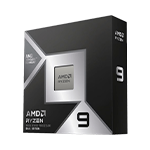
Most tasks in both AutoCAD and SolidWorks are primarily single-threaded, meaning they rely on one CPU core at a time rather than spreading work across many cores. Opening and saving files, rebuilding assemblies, panning and zooming through drawings, and general drafting all fall into this category. For these workflows, the speed of each individual core — known as clock speed or frequency — is what determines how fast your machine feels.
Core count becomes more relevant for specific tasks like simulation, rendering, and ray tracing. These workloads are designed to run across multiple cores simultaneously, so a processor with more cores will complete them faster. The key is understanding which type of work dominates your day.
AutoCAD: Prioritize Clock Speed
AutoCAD is almost entirely single-threaded. The only exceptions are 2D Regeneration (which is not particularly demanding) and Mental Ray rendering. For the vast majority of AutoCAD users, the fastest available single-core performance should be the priority.
AMD Threadripper or Intel Xeon processors, while powerful, tend to have lower clock speeds than mainstream Core or Ryzen CPUs. For AutoCAD specifically, a Threadripper or Xeon is unlikely to offer an advantage and may actually feel slower for day-to-day use.
SolidWorks: It Depends on Your Workflow
SolidWorks general modeling tasks behave similarly to AutoCAD as they are primarily single-threaded and respond best to high clock speeds. However, SolidWorks users doing simulation (FEA, Flow) or rendering with PhotoView 360 will see meaningful gains from higher core counts.
Graphics Card
The GPU handles displaying your 2D and 3D models on screen. For AutoCAD users working exclusively in 2D, almost any graphics card will do the job well. But for 3D work, especially complex assemblies in SolidWorks - the choice of GPU matters significantly.
Consumer vs. Professional GPUs
This is one of the most commonly misunderstood aspects of speccing a CAD machine. Gaming GPUs from the GeForce lineup may have impressive specifications on paper, but they are not certified by Autodesk or Dassault Systèmes for use in professional CAD software. This has real consequences:
• Certified workstation GPUs unlock features like RealView and Ambient Occlusion in SolidWorks, which are not available with consumer cards
• In certain display modes, such as 'shaded with edges' in SolidWorks, a mid-range workstation GPU can outperform a much faster GeForce card
• If you encounter a software issue, Autodesk and Dassault Systèmes will only provide full support if you are running a certified (workstation or professional) card
For professional environments, the recommendation is to use an NVIDIA RTX PRO (formerly Quadro) workstation GPU. The performance and support advantages generally outweigh the higher cost compared to consumer alternatives.
Which GPU Tier Do You Need?
For AutoCAD, GPU requirements are relatively modest. Even for 3D work, a mid-range workstation card like the NVIDIA RTX PRO 4000 Blackwell covers most users comfortably. AutoCAD is also light on video memory (VRAM), so there is no need to pay extra for cards with large memory configurations.
SolidWorks is more demanding, particularly with the Enhanced Graphics Performance mode introduced in version 2019, which offloads significantly more display work to the GPU. The right card depends on the complexity of your assemblies and the resolution of your monitor.
| Assembly Size | 1080p Monitor | 4K Monitor |
|---|---|---|
| Small (under 1M triangles) | NVIDIA RTX PRO A1000 or higher | RTX PRO 2000 or higher |
| Medium (1M+ triangles) | RTX PRO 2000 or higher | RTX PRO 4000 or higher |
| Large (10M+ triangles) | RTX PRO 4500 or higher | RTX PRO 5000 or higher |
Memory (RAM)
RAM is rarely the bottleneck in a CAD workstation, but having too little will noticeably slow down your work when dealing with larger files or running multiple applications simultaneously.
How Much RAM Does AutoCAD Need?
AutoCAD is relatively light on memory. Autodesk's own recommendation is 8GB, though 16GB is our recommended minimum for a professional setup, given that most users run a browser, email client, and other tools alongside their CAD software.
How Much RAM Does SolidWorks Need?
SolidWorks memory requirements scale with the size of your assemblies. A useful rule of thumb: plan for about 5GB for SolidWorks itself, plus approximately 20 times the size of your largest assembly file.
| Largest Assembly File Size | Minimum Recommended RAM |
|---|---|
| Under 500MB | 16GB |
| 500MB to 1.25GB | 32GB |
| 1.25GB to 3GB | 64GB |
⚙️ Key Differences Between the Two
| Area | SOLIDWORKS | AutoCAD |
|---|---|---|
| CPU usage | Mostly single-core, but multi-core for simulation/rendering | Almost entirely single-core |
| GPU importance | Moderate to high (especially 3D assemblies) | Low to moderate (mainly 3D view) |
| RAM demand | High for large assemblies | Moderate (but increases with multitasking) |
| Typical workload | 3D modeling, simulation, rendering | 2D drafting + some 3D |
✅ Final Combined Recommendation
If you want a workstation that handles both programs well:
- CPU: High clock speed (top priority) + decent core count
- GPU: NVIDIA RTX PRO (mid-range or better depending on 3D work)
- RAM: 32GB minimum, 64GB ideal for heavy workflows
- Storage: NVMe SSDs (at least one, ideally two)
🧾 Bottom Line
- Both applications reward fast CPUs over many cores
- SOLIDWORKS is heavier overall, especially with simulations
- AutoCAD is lighter, but still benefits from high-performance hardware