
NVMe SSD vs SATA SSD: What Difference Will You Notice?

When upgrading your PC storage, one of the biggest questions is whether to choose an NVMe SSD or SATA SSD. Both are significantly faster than traditional hard drives, but they differ in speed, connectivity, and how they perform during everyday tasks.
An NVMe SSD can deliver several times the sequential transfer speed of a SATA SSD. But does that mean your games will load several times faster? Will Windows feel noticeably more responsive? And is upgrading to NVMe actually worth it?
Let's compare NVMe vs SATA SSD performance and explain what difference you will notice in gaming, productivity, and content creation.
What Is a SATA SSD?
A SATA SSD uses the SATA interface, originally developed for hard drives. Most traditional SATA SSDs come in a 2.5-inch form factor and connect through a SATA data cable and power cable.
Because SATA III has a maximum interface speed of 6Gbps, typical SATA SSDs reach sequential read speeds of approximately 500–560 MB/s.
Despite this limitation, SATA SSDs are still useful for everyday computing, operating systems, game storage, and upgrading older computers.
If you are moving from a traditional hard drive to a SATA SSD, you can expect a substantial improvement in system responsiveness and application loading.
What Is an NVMe SSD?
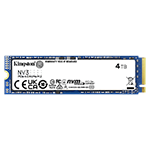
NVMe stands for Non-Volatile Memory Express, a storage protocol designed for high-speed solid-state storage.
Unlike SATA SSDs, NVMe SSDs commonly use the PCIe interface, allowing much higher data transfer speeds and efficient handling of multiple storage requests.
Many consumer NVMe SSDs use the compact M.2 form factor and install directly onto a compatible motherboard.
Typical advertised sequential read speeds vary by generation:
-
SATA SSD: Up to approximately 550 MB/s
-
PCIe 3.0 NVMe SSD: Around 3,000–3,500 MB/s
-
PCIe 4.0 NVMe SSD: Up to approximately 7,000–7,500 MB/s
-
PCIe 5.0 NVMe SSD: Some models exceed 12,000 MB/s
These are representative peak speeds, not guaranteed performance for every drive. Actual results depend on the SSD model, capacity, cooling, and workload.
Explore SSD and storage options at Vektra PC.
NVMe SSD vs SATA SSD: Gaming Performance
For gamers, the biggest question is whether an NVMe SSD increases FPS.
The answer is generally no. Your graphics card, processor, and RAM have a much greater influence on gaming frame rates.
However, storage speed can affect game loading, installation, updates, and asset streaming.
Compared with SATA, an NVMe SSD can improve loading times in certain games, particularly those optimized for faster storage access.
But a PCIe 4.0 SSD delivering 7,000 MB/s will not necessarily load a game seven times faster than a SATA SSD delivering 550 MB/s.
Game loading also involves decompression, CPU processing, and other tasks that are not determined by sequential storage speed alone.
For a new gaming PC, an NVMe SSD is generally the more attractive choice when motherboard compatibility and pricing allow.
Will Windows Boot Faster With NVMe?
Both SATA and NVMe SSDs can make Windows feel considerably faster than a mechanical hard drive.
However, the difference between a good SATA SSD and a modern NVMe SSD during everyday activities may be relatively small.
Tasks such as opening a browser, launching Microsoft Office, or navigating Windows often involve small data transfers rather than sustained sequential reads.
As a result, upgrading from SATA to NVMe may not produce the dramatic improvement you experienced when moving from an HDD to an SSD.
The benefit becomes more noticeable during larger transfers and storage-intensive operations.
NVMe vs SATA for Video Editing and Content Creation
For content creators, NVMe storage can offer more meaningful advantages.
Applications such as Adobe Premiere Pro, DaVinci Resolve, Photoshop, and other professional software frequently work with large media files, caches, previews, and project assets.
A fast NVMe SSD can help with tasks such as:
-
Transferring large video files
-
Loading high-resolution project assets
-
Managing large media libraries
-
Reading and writing application cache files
-
Handling storage-intensive creative workflows
However, editing performance also depends on CPU power, GPU acceleration, RAM capacity, codecs, and the complexity of the project.
Vektra PC's Video Editing Workstation for Adobe Premiere Pro and DaVinci Resolve includes a 1TB NVMe SSD, providing fast storage for editing applications and active projects.
Is PCIe 5.0 NVMe Worth It Over PCIe 4.0?
PCIe 5.0 NVMe SSDs offer much higher potential bandwidth than PCIe 4.0 models, but not every user needs that performance.
For gaming, general productivity, and many content creation workflows, a good PCIe 4.0 NVMe SSD can already deliver excellent performance.
PCIe 5.0 becomes more attractive for specialized workloads involving very large files and sustained storage transfers.
Before upgrading, check whether your motherboard supports the required PCIe generation and whether the SSD needs additional cooling.
For many users, choosing a larger-capacity PCIe 4.0 SSD may be more useful than purchasing a smaller PCIe 5.0 model.
Which SSD Should You Buy?
The best SSD depends on your PC and how you use it.
| Your Usage | Recommended SSD |
|---|---|
| Older PC upgrade | SATA SSD, if NVMe is unsupported |
| Everyday computing | SATA or NVMe SSD |
| New gaming PC | PCIe 4.0 NVMe SSD |
| Streaming and multitasking | PCIe 4.0 NVMe SSD |
| Video editing and content creation | High-capacity NVMe SSD |
| Heavy professional file transfers | High-performance NVMe SSD |
Remember that capacity matters too. A 2TB SSD may be more useful than a faster 1TB drive if you regularly install large games or work with video files.
Upgrade Your PC Storage With Vektra PC
Both SATA and NVMe SSDs offer substantial advantages over traditional hard drives, but NVMe is generally the better choice for a new gaming PC or performance workstation.
SATA remains useful for older systems and additional storage, while NVMe provides higher bandwidth for demanding workloads.
Whether you need a 1TB SSD for gaming or a larger drive for content creation, choosing the right capacity and interface will help you get more from your PC.
Explore Memory & Storage at Vektra PC, or browse our Gaming PCs and Professional Workstations.
SHOP NOW AT WWW.VEKTRAPC.COM